1 Arrive
Your travels, folded into carousels.
Leporello designs Instagram carousels, posts and stories from your photos and videos – no account, no subscription, no data collection.
1 Arrive
Leporello designs Instagram carousels, posts and stories from your photos and videos – no account, no subscription, no data collection.
2 Fold out
Panoramas and collages flow seamlessly across page edges – just the way people swipe through them in the feed.
3 Develop
Exposure, color, curves, clarity, and grain, plus your own presets – without a detour through a second app.
4 Pull back
The capture date and place of your photos form the trips on their own. You leaf through your years like an album.
5 Tilt
On the map, your carousels stand where they were made – joined into the route of the year.
6 Dive in
Carousels, posts and stories as JPEG or MP4 with sound – saved straight to Photos or shared.
7 Final picture
No account. No subscription. No data collected. Your photos and projects stay on your iPhone.
Seven steps in the real app – from the plus button to a finished carousel in your library.
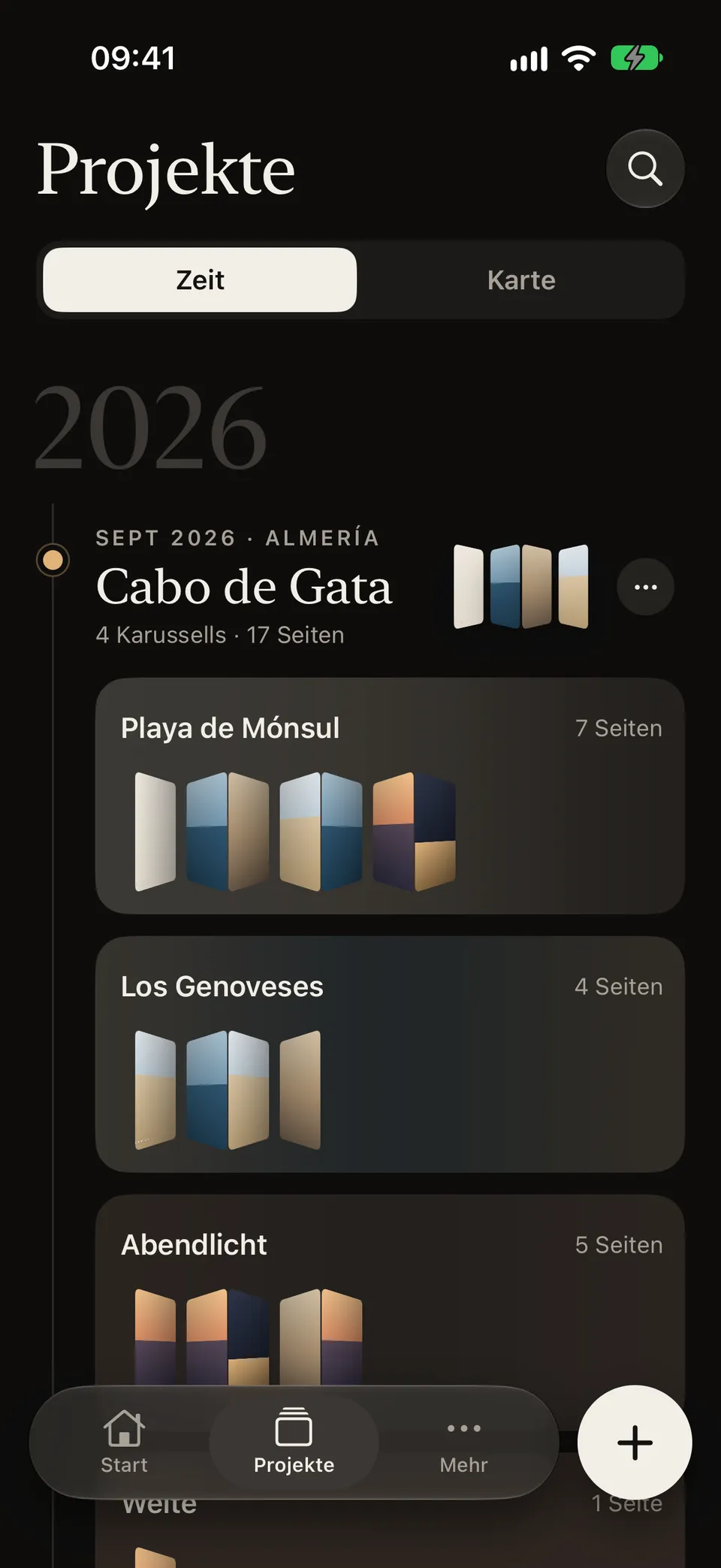
The plus in the bar starts a new carousel – right in the timeline of your trips.
Timeline with the trip Cabo de Gata opened and its folded carousels; the bar with the plus button at the bottom.
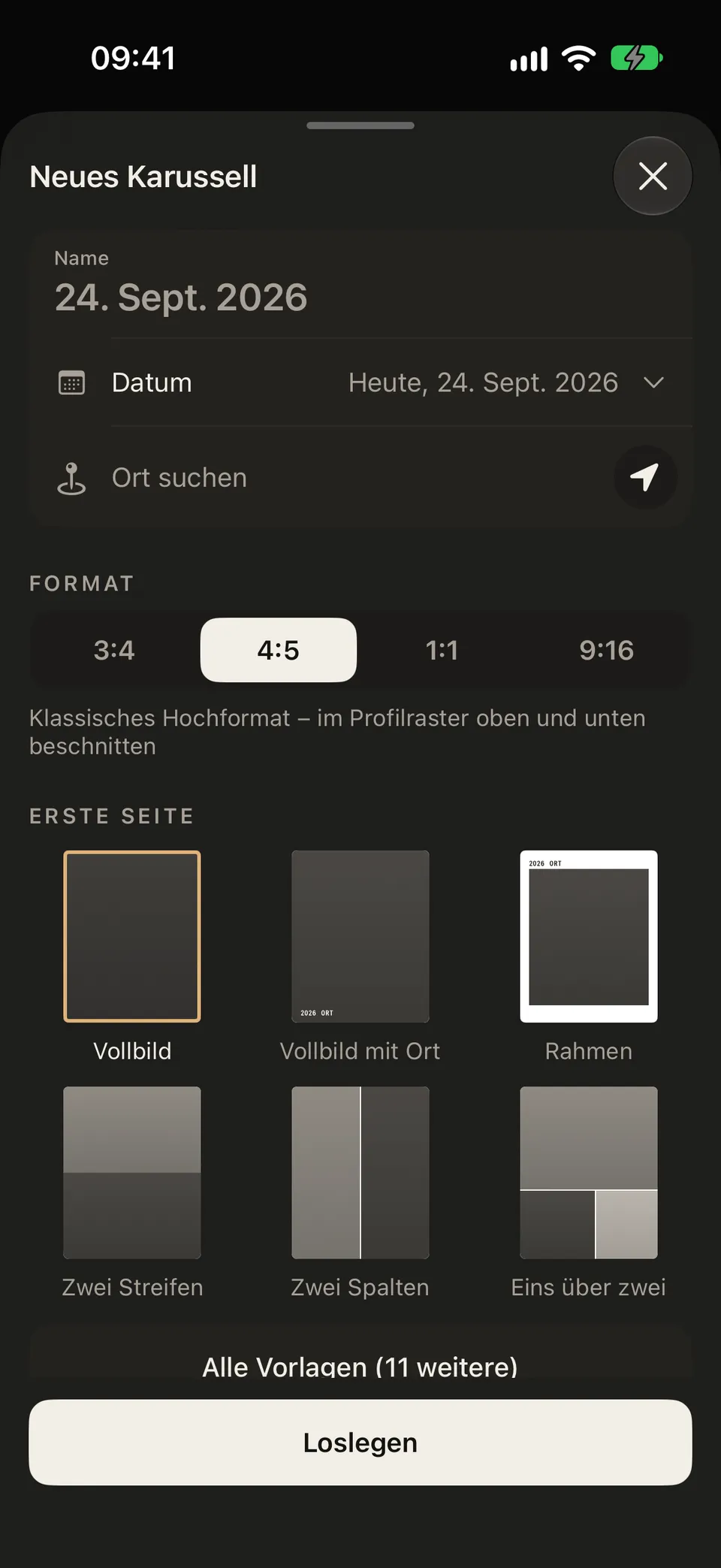
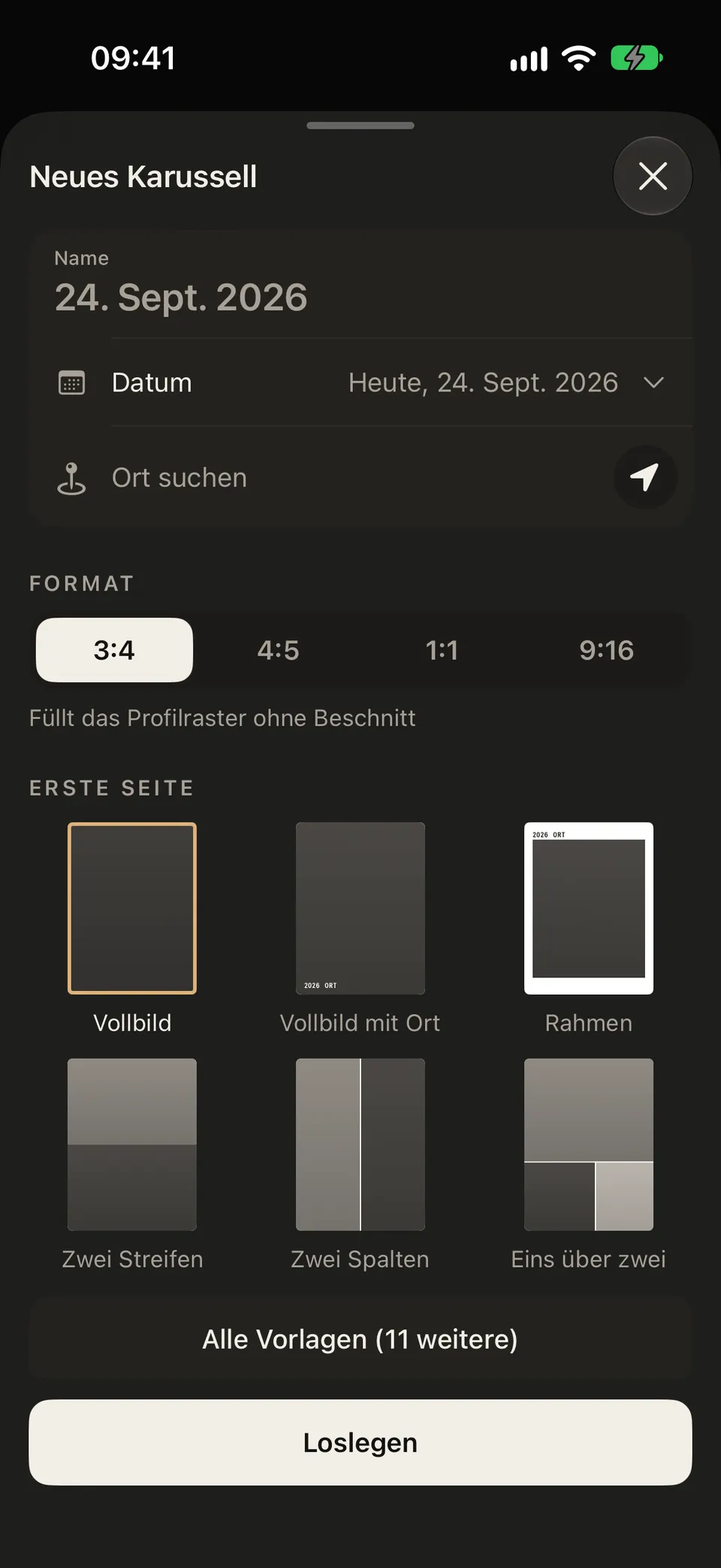
Choose 3:4, 4:5, 1:1, or 9:16, then get going. You pick photos in Apple’s picker – Leporello only sees what you choose.
Create panel with name, date and place; format 4:5 is selected, with the “Loslegen” (get going) button below.
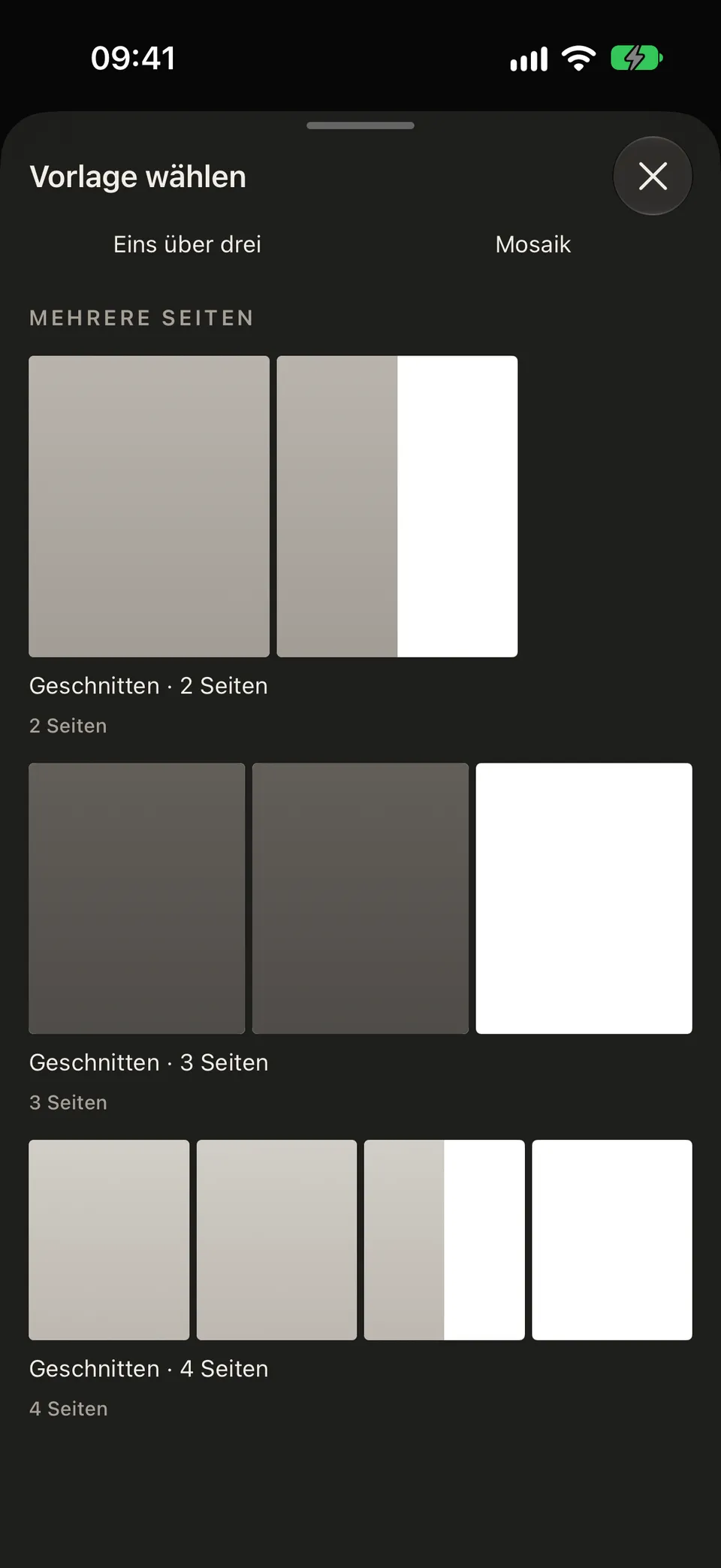
Six proven templates up top, the rest on request – including a panorama that runs across four pages.
Templates in the editor, expanded down to the multi-page ones, including “Geschnitten · 4 Seiten” (split across four pages).
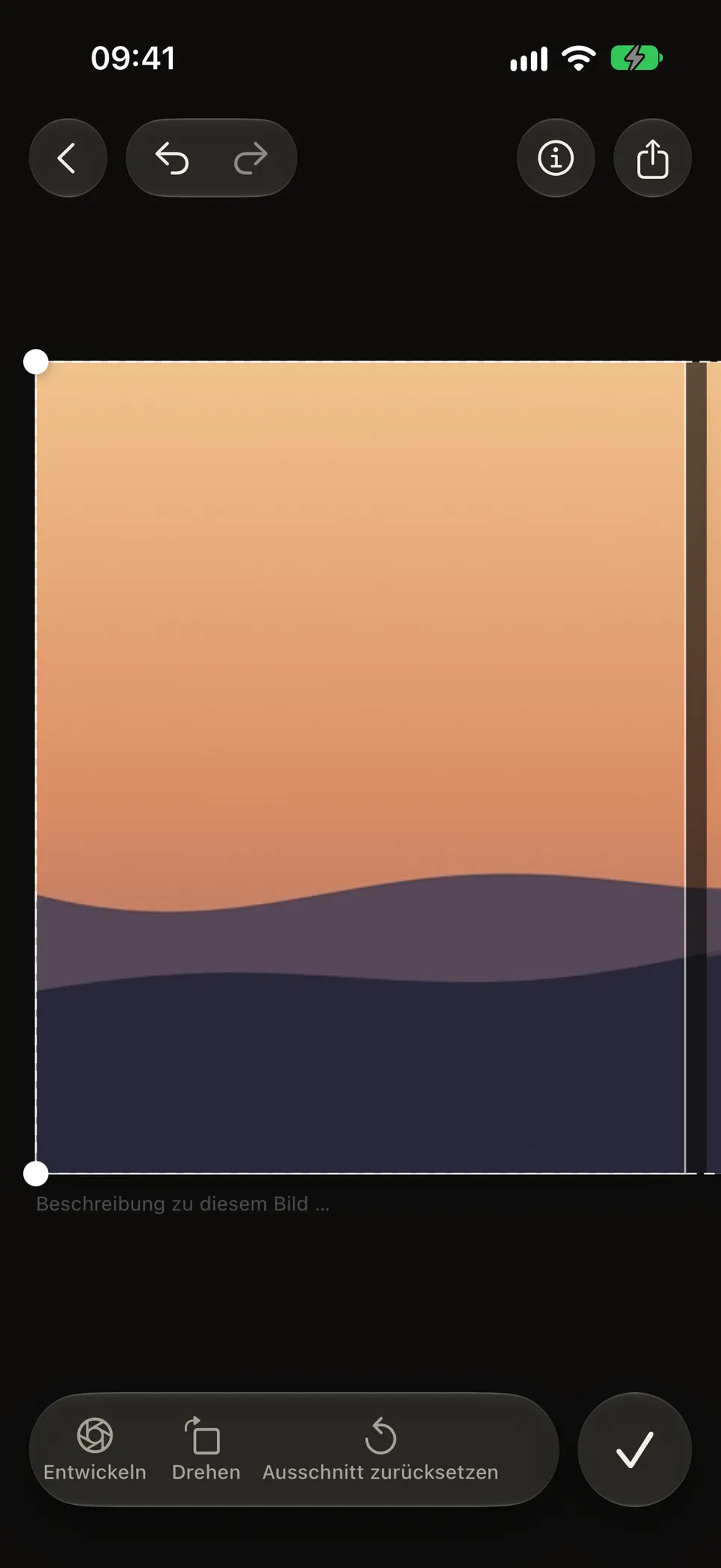
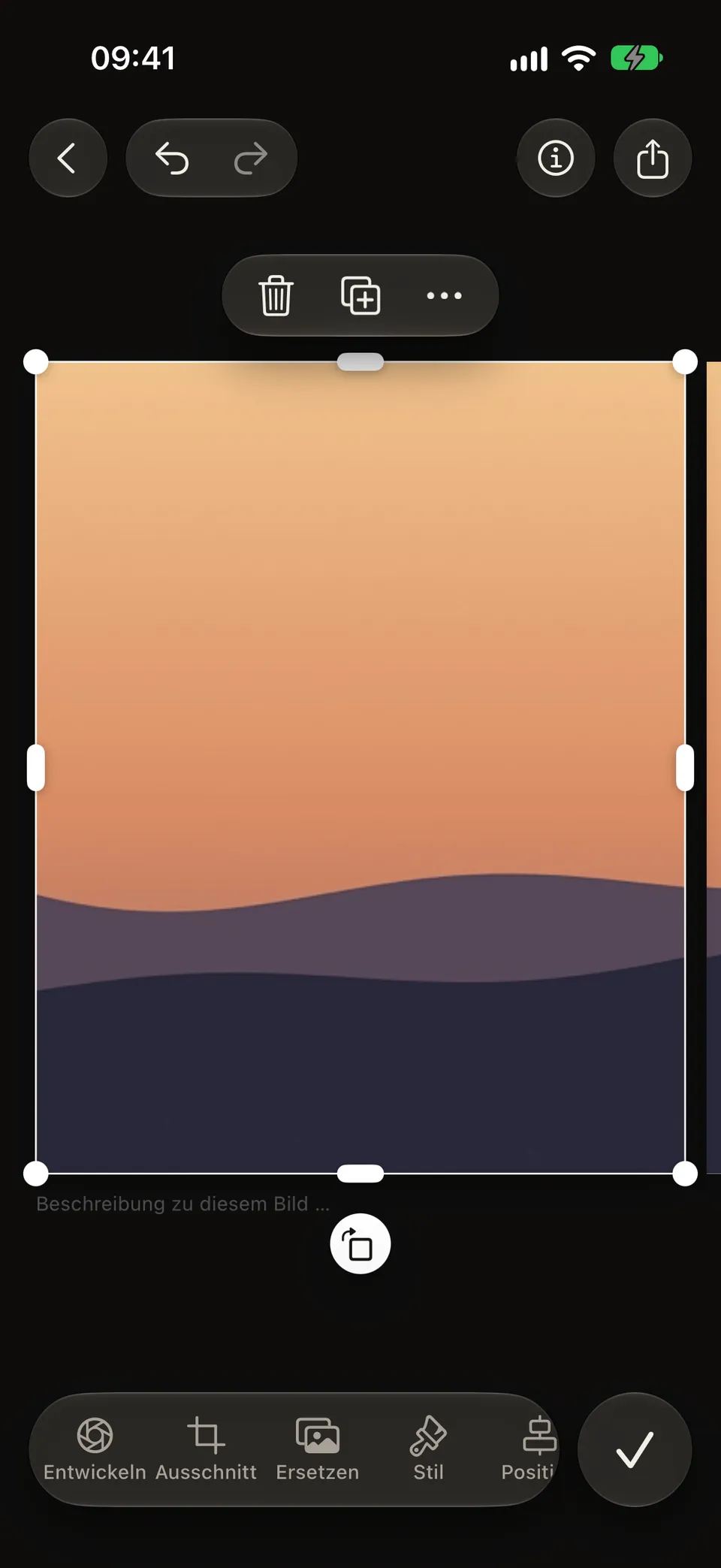
Tap the photo, choose crop and slide it within its frame – the panorama moves across all four pages with it.
Crop mode: the panorama inside a dashed frame, with develop, rotate and reset crop at the bottom.
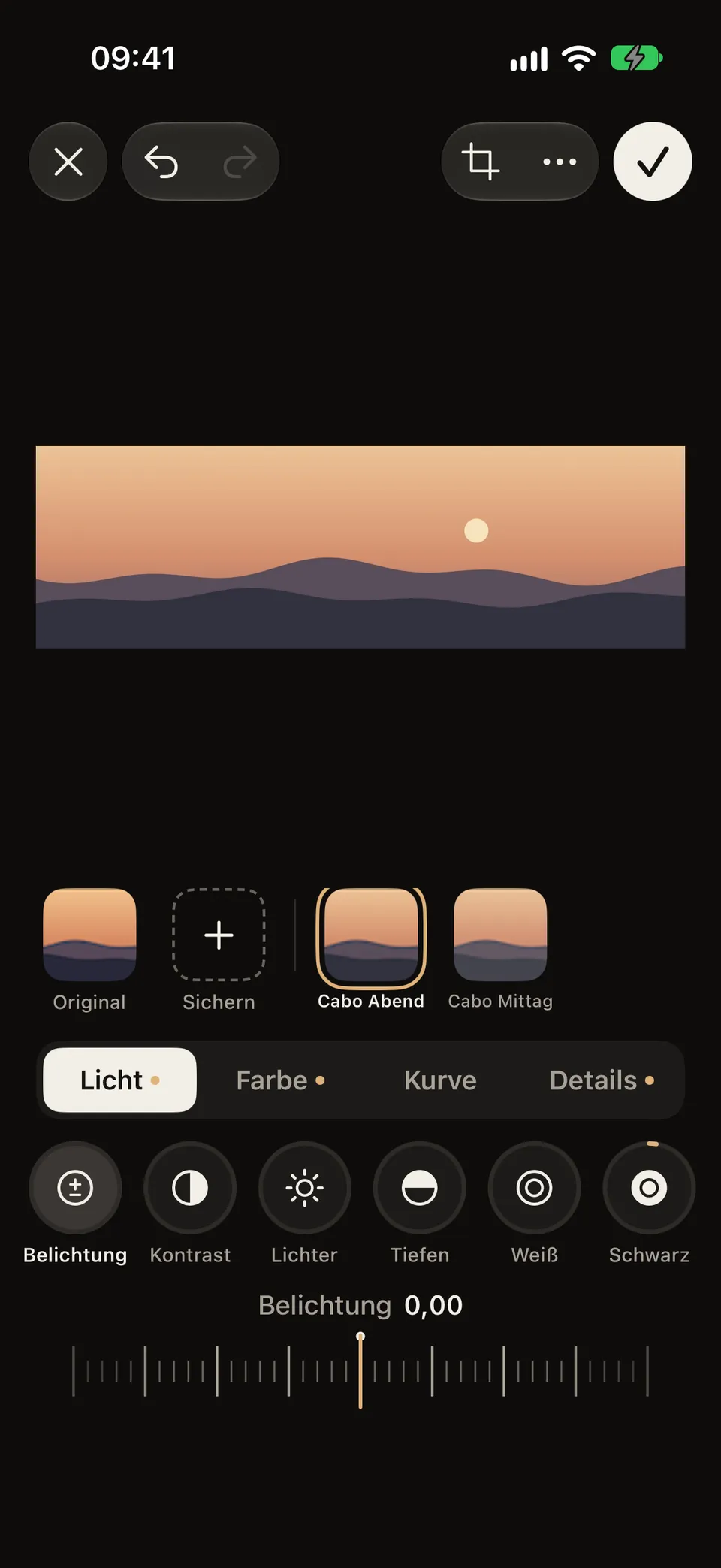
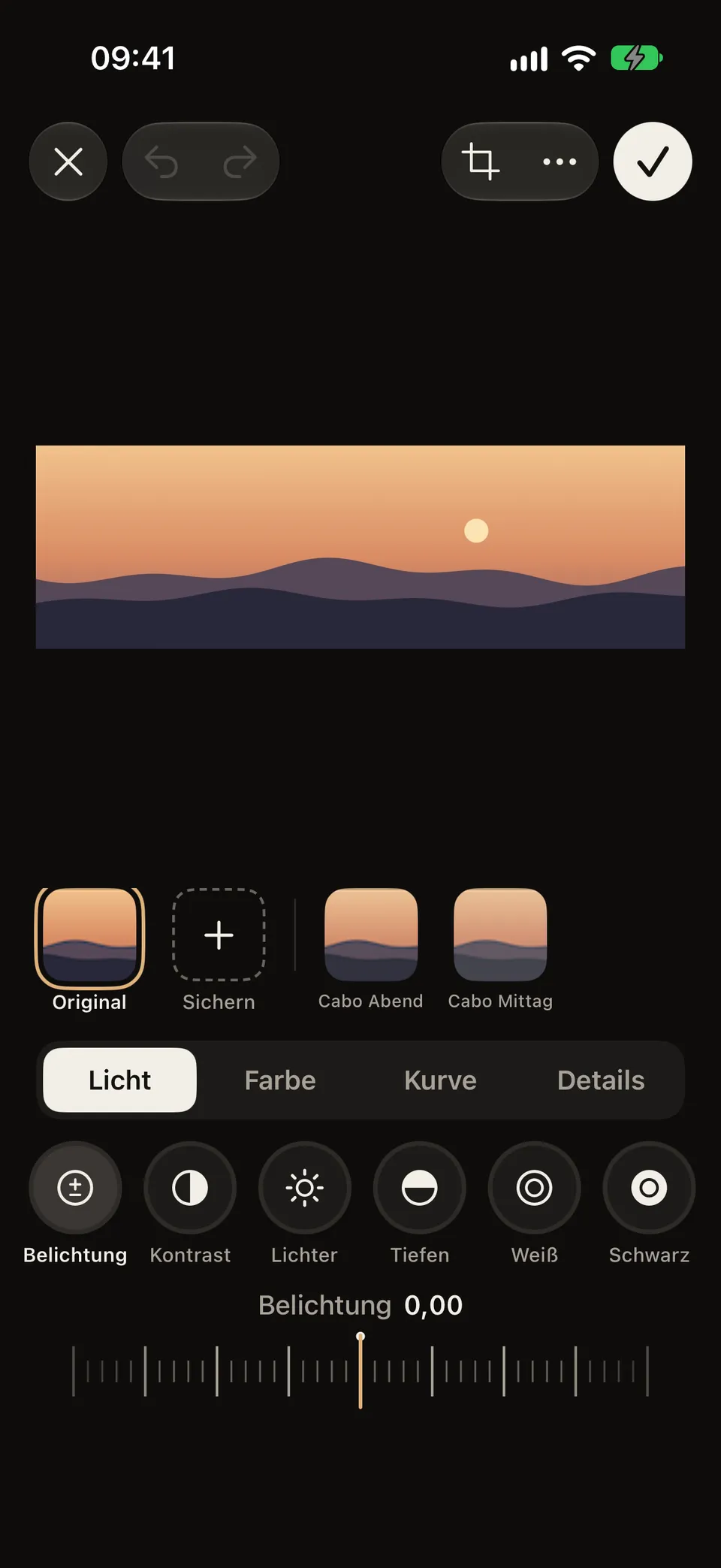
Tap a preset like “Cabo Abend” and fine-tune it on the ruler – right in the editor, no second app.
Develop with the preset “Cabo Abend”; the tools and the ruler at the bottom.
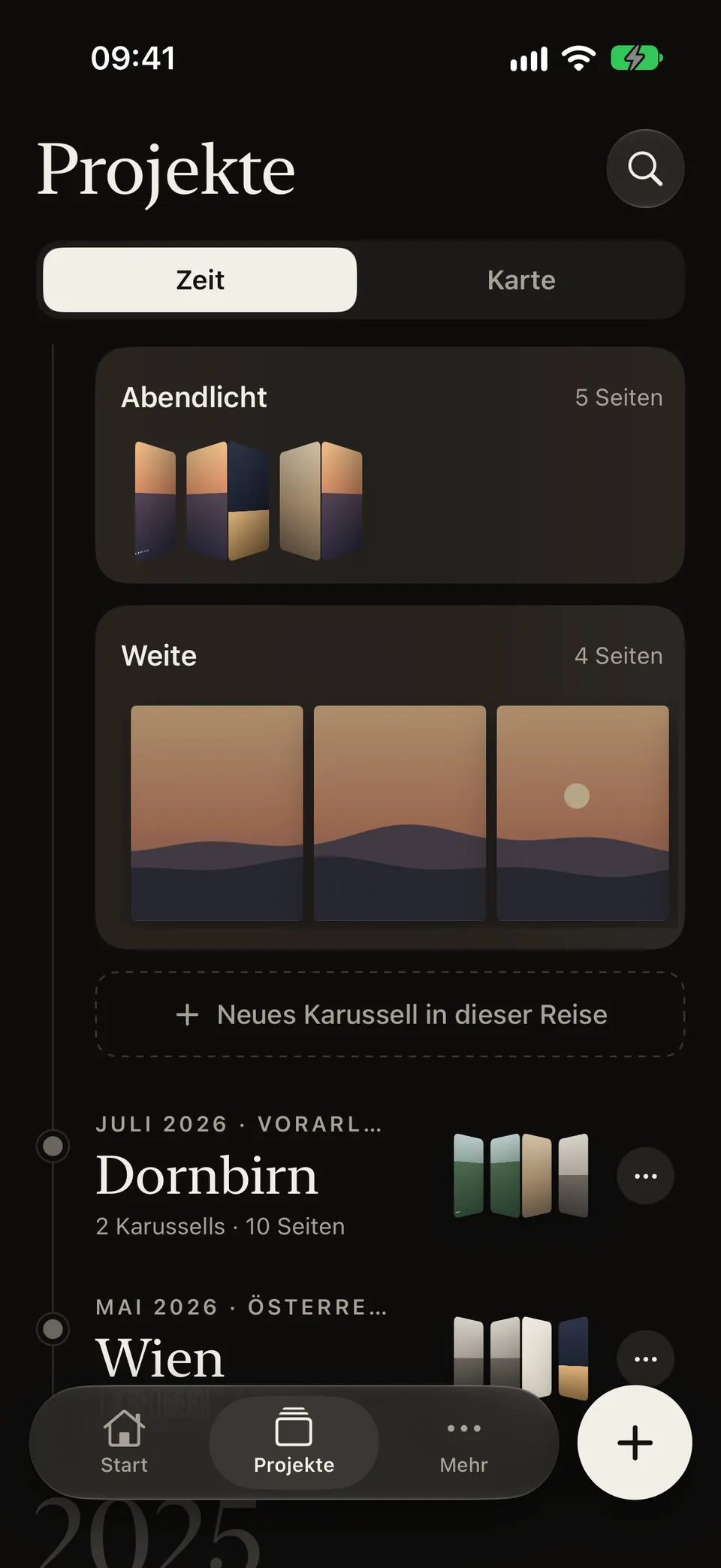
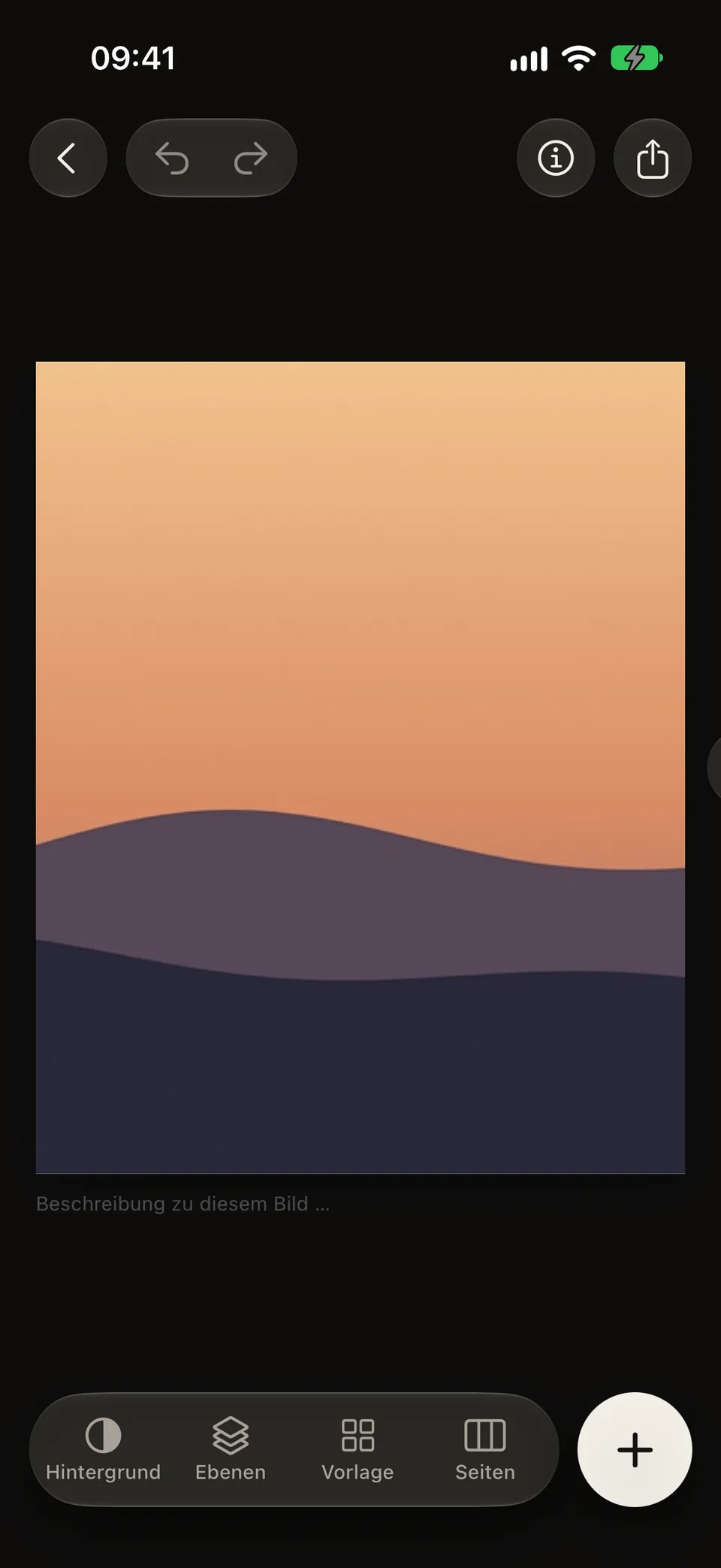
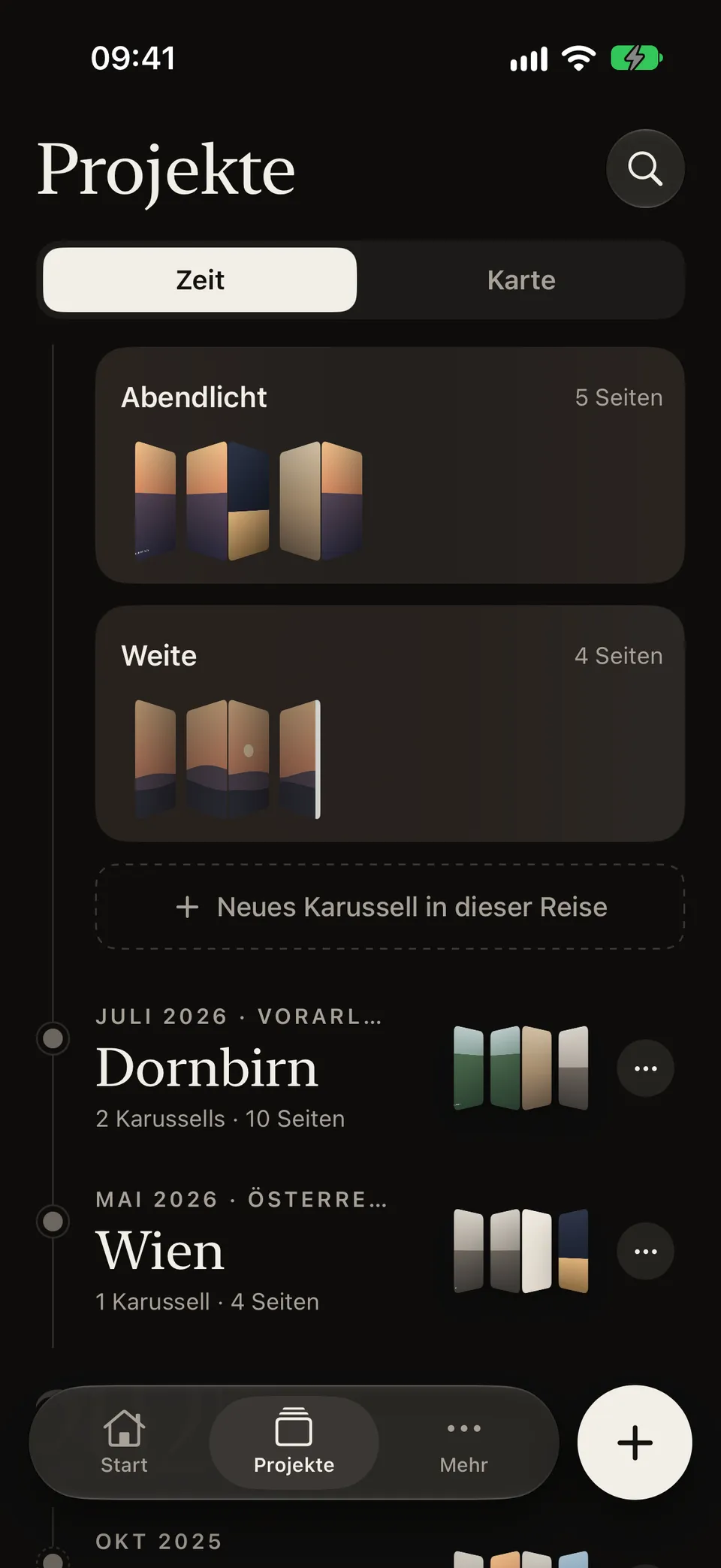
One swipe opens out the carousel in the timeline: every page side by side, just as people swipe through it in the feed.
The carousel “Weite” opened out in the timeline: one evening panorama runs across the pages.
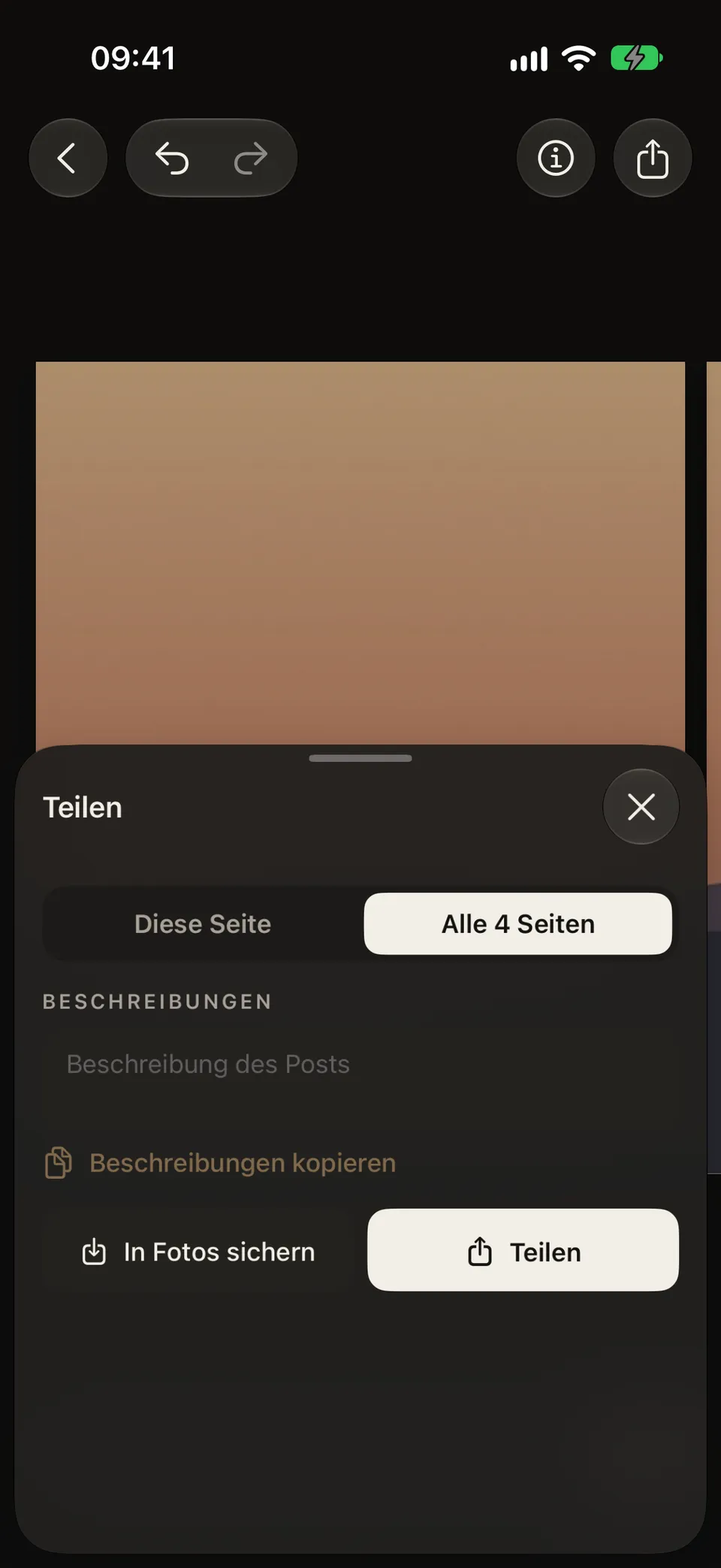
Carousels, posts and stories as JPEG or MP4 with sound – saved straight to Photos or shared.
Share sheet “Teilen”: all four pages selected, with the buttons “In Fotos sichern” (save to Photos) and “Teilen” (share).
Real screens from the current build – with photos from real trips.


The app speaks German for now; English screens will follow with the English version.
Six proven layouts up front, all others one tap away – seamless across pages.
Exposure, color, curves, clarity, and grain, plus your own presets – without a detour through a second app.
Trim, pick the sound source, save as MP4 with sound.
The date and place of your photos sort your carousels into trips – on a timeline and on a map.
3:4, 4:5, 1:1, and 9:16 – as JPEG or MP4, straight to Photos or shared.
You pick photos with Apple’s picker; Leporello only sees what you choose.
No subscription, no watermark.
Free
Carousels, posts and stories, developing, video, and export – no watermark.
Later
Pro comes later – pay once, no subscription.
This website sets no cookies and measures nothing.
App privacy policyAlmost everything is free – no subscription and no watermark. Later, “Pro” will follow as a one-time purchase for extras. There will be no subscription.
Only on your iPhone. Leporello has no account and no server. You pick photos with Apple’s photo picker, without the app seeing your library.
Not yet. If you would like it, write to me at support@rumority.com – the number of requests helps decide.
Carousels and posts in portrait 4:5 or square 1:1, and stories in 9:16. Plus the 3:4 format for the profile grid. Pages with video are saved as MP4 with sound, all others as JPEG.
There is nothing to buy yet. Once “Pro” is available, you will find “Restore purchase” under “More”.